How to open and measure a STEP file
Received a .step or .stp model and need to check it? Open it in Omia on Mac or Windows, rotate it, read its overall dimensions and measure between two points. The file stays on your computer.
By Xiaoer, Omia's developer · Updated October 10, 2026
Free to view, no sign-up · 5 free uses of pro features · Then $19.90 once
1. Open the model
Install Omia using the install guide, then drag your .step or .stp file onto its window. Both extensions are supported directly.
STEP is converted locally before the preview appears. For a large model, let the progress finish; you can cancel if you opened the wrong file. An internet connection is not needed to view the model.
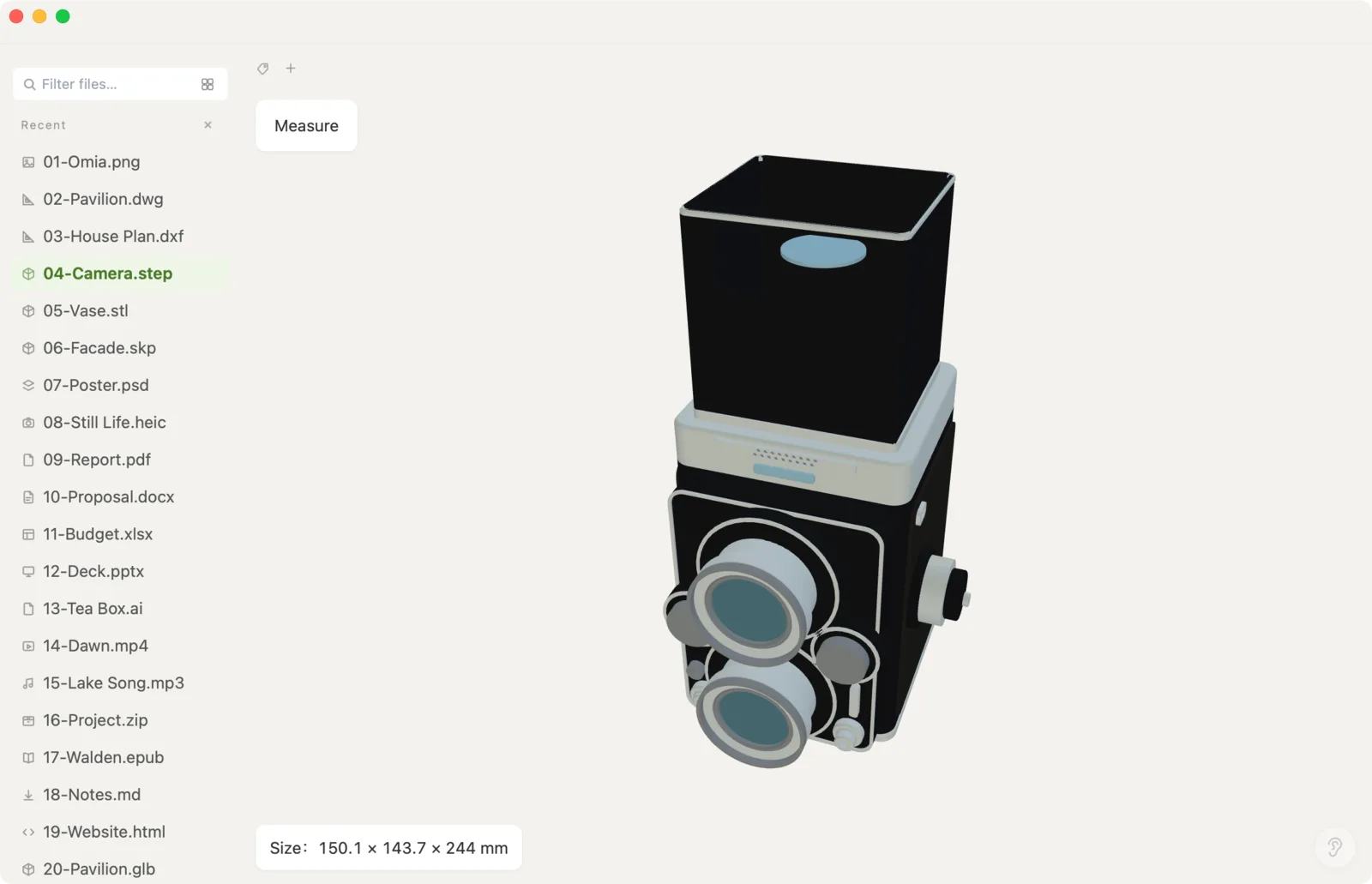
2. Inspect the shape and overall size
Rotate, zoom and pan to inspect the part. The size readout shows the model's extent along X, Y and Z in its original file coordinates. Rotating the camera does not change those dimensions.
This is the model's overall bounding size. In the screenshot above, the camera model reads 150.1 × 143.7 × 244 mm. Those numbers describe its extent along the three axes; they do not describe every hole, edge or feature on the part. Omia displays STEP dimensions in millimetres.
3. Measure between two points
- Click Measure.
- Click the first point on the visible surface of the model.
- Click a second surface point. Read Distance and the separate ΔX, ΔY and ΔZ values.
- Click another point to begin a new measurement, or press Esc to clear it and leave measurement mode.
Distance is the straight-line distance between the two points you picked. ΔX, ΔY and ΔZ are the absolute differences along each axis. Zoom in before picking small features: you are choosing points on the rendered surface, rather than selecting a named CAD dimension.
4. Plan for a large STEP file
During conversion, memory use can be roughly seven times the STEP file size. A 1 GB model may therefore need about 7 GB of RAM, leaving little room for the system on an 8 GB computer. It can be slow; file size alone does not predict the conversion time.
For large STEP files, use macOS 11 or later on Apple Silicon, macOS 10.15 or later on Intel, or Windows 10/11. Older macOS versions can open STEP files up to 80 MB. If memory is tight, close other large applications or ask the sender for a smaller part or simplified assembly.
If something does not work
- No preview: check that the file is a complete STEP export. Changing another file's extension to .step does not convert it. Ask the sender to export the model again if the file is incomplete.
- Measure is disabled: the large-model viewer needs GPU support for point picking. Omia displays an explanation when the device cannot provide it.
- You need to edit or convert the model: use a CAD editor. Omia's STEP viewer is read-only and does not export STEP to STL or another 3D format.
FAQ
Can I open a STEP file without installing a full CAD editor?
Yes. Omia is a desktop viewer for Mac and Windows. Open a .step or .stp file to rotate it, inspect its overall dimensions and measure between two points, without a CAD account or uploading the model.
What is the difference between .step and .stp?
Both extensions are supported as STEP files in Omia. You can open either directly; changing the extension is unnecessary.
Can Omia edit STEP or convert it to STL?
No. STEP is read-only in Omia. You can view and measure it, but you cannot edit its geometry or export it as another 3D format.
How much RAM does a large STEP file need?
Allow roughly seven times the file size during conversion. A 1 GB STEP may need about 7 GB of RAM and will be slow on an 8 GB computer. Omia shows progress and lets you cancel. Actual memory and time depend on the model.
Why is the Measure button unavailable?
Point picking in the large-model viewer depends on GPU support. If the device cannot support it, Omia disables Measure and displays the reason. This does not mean that the model was uploaded or modified.
Are STEP files uploaded to a server?
No. Conversion and viewing run locally on your computer. No cloud CAD account is needed.
Is it free to try?
Viewing is free and needs no sign-up. Saving, converting and opening pro formats like DWG and STEP come with 5 free uses each; after that a licence is $19.90 once, with no subscription.
Related: STEP viewer features · STL viewer · Other 3D formats · Open DWG on Mac